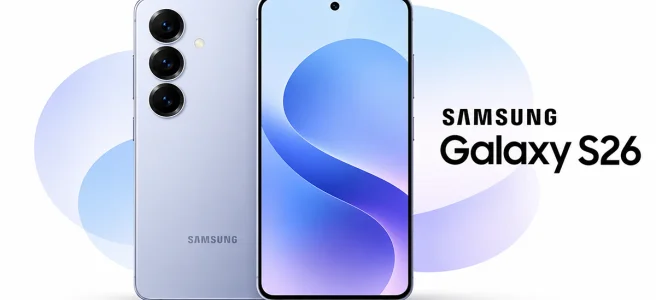
The Samsung Galaxy S26 is packed with powerful features, intelligent tools, and customization options, but getting started can feel overwhelming if you’re new to Samsung smartphones. Whether you’ve upgraded from an older Galaxy device, switched from an iPhone, or purchased your first Android phone, learning the basics will help you get more from your device. This Samsung S26 Beginners Guide explains how to set up your phone, transfer your data, navigate Samsung One UI, customize essential settings, use Galaxy AI, take better photos, and improve battery life.

The Galaxy S26 runs Android 16 with Samsung One UI 8.5, combining familiar Android functionality with Samsung’s own features and Galaxy AI tools. Its 6.3-inch Dynamic AMOLED 2X display, 120Hz adaptive refresh rate, and versatile triple-camera system make it a capable everyday smartphone.
Let’s explore the essential features every new Galaxy S26 owner should know.
Download Samsung Galaxy S26 User Manual here: https://www.galaxys26manual.com.
Samsung S26 Beginners Guide: Getting Started
Before exploring advanced features, complete the initial setup and configure your phone’s essential settings.
1. How to Set Up Samsung Galaxy S26
When you turn on your Galaxy S26 for the first time, the setup wizard guides you through the configuration process.
Follow these steps:
- Press and hold the Side button to turn on your phone.
- Select your preferred language and region.
- Connect to a Wi-Fi network.
- Insert your SIM card or configure an eSIM if needed.
- Sign in to your Google account.
- Sign in to your Samsung account.
- Configure your screen lock and biometric security.
- Review the privacy settings and available services.
Once setup is complete, open Settings > Software update > Download and install to check for available updates.
Keeping your software updated helps maintain security, stability, and access to new features.
2. Transfer Data From Your Old Phone
You don’t need to start from scratch when switching to the Galaxy S26. Samsung Smart Switch helps transfer important information from another Android smartphone or iPhone.
To use Smart Switch:
- Open Settings on your Galaxy S26.
- Select Accounts and backup.
- Tap Bring data from old device or open Smart Switch.
- Choose whether your previous device is an Android phone or iPhone.
- Connect both devices using the available wireless or cable method.
- Select the information you want to transfer.
- Start the transfer and wait for it to finish.
Depending on your previous device and transfer method, supported content can include contacts, photos, videos, messages, and other personal information.
Check that your important files have transferred successfully before resetting or giving away your old phone.
3. Understand Samsung One UI and Navigation
Samsung One UI controls how you interact with your Galaxy S26. Learning its basic navigation makes everyday tasks much easier.
Home Screen and App Drawer
The Home screen is where you access frequently used applications, widgets, and shortcuts.
Swipe upward from the Home screen to open the Apps screen. From there, you can browse installed applications or search for a specific app.
You can personalize your Home screen by:
- Long-pressing an empty area to change wallpapers and themes.
- Adding widgets for weather, calendars, and other information.
- Moving app icons into folders.
- Adjusting the Home screen grid.
- Changing the appearance of app icons.
Quick Settings and Notification Panel
Swipe down from the top of the screen to access notifications and quick controls.
Depending on your One UI configuration, you can access Wi-Fi, Bluetooth, Airplane mode, screen brightness, sound settings, and other shortcuts.
Use Quick Settings to control frequently used features without opening the full Settings application.
4. Customize Essential Samsung S26 Settings
Adjusting a few settings can make your smartphone more comfortable, secure, and convenient.
Set Up Fingerprint and Face Recognition
Protect your personal information by configuring biometric security.
Open Settings > Security and privacy > Biometrics and follow the instructions to register your fingerprint or face, where available.
You should also create a secure PIN, password, or pattern as a backup unlocking method.
Customize Display Settings
The Galaxy S26 features a 6.3-inch Dynamic AMOLED 2X display with an adaptive refresh rate of up to 120Hz.
To personalize the display:
- Open Settings.
- Select Display.
- Adjust screen brightness.
- Configure Dark mode.
- Choose your preferred screen timeout.
- Explore Motion smoothness and other available display options.
A higher refresh rate makes scrolling feel smoother, while adjusting brightness can help reduce unnecessary battery consumption.
Manage Notifications
Too many notifications can become distracting.
Go to Settings > Notifications > App notifications to choose which applications can send alerts.
Keep notifications enabled for important applications while limiting unnecessary interruptions.
5. Explore Galaxy AI Features on Samsung S26
Galaxy AI brings intelligent tools to everyday smartphone tasks. Depending on language, region, account, and software availability, supported features can help with communication, productivity, content creation, and information searches.
Use Galaxy AI for Everyday Tasks
Explore the available Galaxy AI tools through supported Samsung applications and system interfaces.
Some useful capabilities include:
- Writing assistance: Help improve, rewrite, or adjust the tone of supported text.
- Photo editing: Use supported editing tools to modify images and remove unwanted elements.
- Translation: Access supported translation tools for conversations and text.
- Search: Use supported AI-powered search experiences to find information more conveniently.
- Personal assistance: Explore available assistant features for everyday tasks.
To get started, open the relevant application and look for its Galaxy AI or assistant controls.
Remember that AI-generated results may occasionally be inaccurate. Check important information before relying on it.
6. Learn Samsung S26 Camera Tips
The Galaxy S26 features a triple rear-camera system consisting of a 50MP wide camera, 12MP ultra-wide camera, and 10MP telephoto camera with 3x optical zoom.
Its camera system makes it easy for beginners to capture everyday moments without complicated manual adjustments.
How to Take Better Photos With Galaxy S26
Open the Camera application and start with Photo mode.
Try these simple tips:
- Clean the camera lenses before taking pictures.
- Tap your subject on the screen to adjust focus.
- Use the 1x camera setting for everyday photography.
- Switch to ultra-wide when capturing landscapes or group photos.
- Use 3x optical zoom for distant subjects.
- Keep your hands steady when recording videos.
Explore Portrait mode for photos with background blur and Night mode when photographing in darker environments.
You can also open Camera settings to discover additional shooting options.
7. Improve Samsung S26 Battery Life
Battery management is important if you want your smartphone to last throughout the day.
The standard Galaxy S26 has a 4,300mAh battery, although actual battery life depends on your usage, network conditions, and settings.
Battery Saving Tips for Beginners
Consider these practical adjustments:
- Reduce screen brightness when possible.
- Use Dark mode if you prefer it.
- Set a shorter screen timeout.
- Review applications that consume excessive battery power.
- Enable Power saving mode when necessary.
- Limit unnecessary background activity.
- Turn off Bluetooth, GPS, or Wi-Fi when you don’t need them.
To review battery usage, open Settings > Battery.
You can also explore available battery protection options to help manage charging behavior and long-term battery health.
8. Essential Samsung Galaxy S26 Features to Learn
Here is a quick reference table of useful features and where beginners can find them.
| Feature | Where to Find It | Main Benefit |
|---|---|---|
| Smart Switch | Settings or Smart Switch app | Transfer old phone data |
| Fingerprint security | Settings > Biometrics | Secure phone access |
| Dark mode | Settings > Display | Change screen appearance |
| Galaxy AI | Supported apps and system interfaces | Intelligent assistance |
| Camera modes | Camera app | Capture better photos |
| Power saving | Settings > Battery | Reduce battery consumption |
| Quick Settings | Swipe down from the top | Control essential features |
| Screen recording | Quick Settings | Record screen activity |
| Samsung Find | Samsung Find app/service | Locate supported devices |
| Modes and Routines | Settings | Automate selected actions |
Frequently Asked Questions About Samsung Galaxy S26
Is Samsung Galaxy S26 easy to use for beginners?
Yes. The Galaxy S26 offers an intuitive interface through Samsung One UI. Beginners can learn basic navigation, customize settings, and explore additional features gradually.
What should I do first after buying Samsung Galaxy S26?
Start by completing the initial setup, connecting to Wi-Fi, signing into your accounts, transferring your old data, installing software updates, and configuring screen security.
Does Samsung Galaxy S26 support Galaxy AI?
Yes. Galaxy S26 supports Galaxy AI features, although individual tools and languages may vary depending on the region, software version, and service availability.
How can I improve Samsung S26 battery life?
Reduce screen brightness, manage background applications, use Power saving mode when necessary, and review battery usage through Settings.
How do I transfer data from iPhone to Samsung Galaxy S26?
Use Samsung Smart Switch. Depending on compatibility, you can transfer supported information using a cable or wireless connection.
Final Thoughts
The Samsung Galaxy S26 offers plenty of features for beginners, from its customizable One UI interface to Galaxy AI, versatile cameras, and useful battery management tools.
Start with the essential setup steps, learn the navigation controls, and configure your security and display preferences. Once you’re comfortable with the basics, explore Galaxy AI, camera modes, and automation features.
With a little practice, you’ll be able to use your Samsung Galaxy S26 more confidently and make the most of its capabilities.