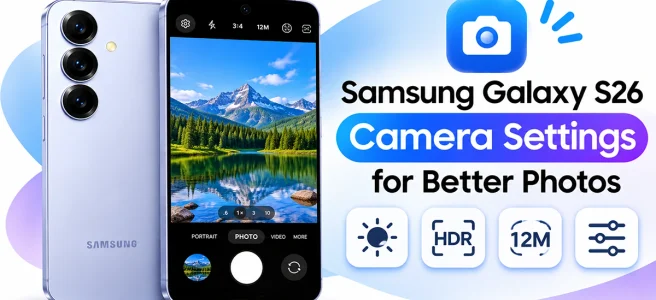
The best Galaxy S26 camera settings depend on what you are photographing, but a few adjustments can noticeably improve your results. For everyday photography, enable Composition guide, set Photo enhancer to Prioritize quality, use the appropriate camera lens, and adjust exposure before taking a picture. For video, enable stabilization and choose a resolution and frame rate that match your needs.

Samsung’s Galaxy S26 camera includes useful tools such as Shot suggestions, Scene optimizer, Nightography, Super Steady, and Pro mode. Knowing when to use each feature helps you capture sharper photos, more balanced colors, and smoother videos without constantly changing settings.
This guide explains the best Galaxy S26 camera settings for beginners and everyday users, including recommended configurations for the Galaxy S26, S26+, and S26 Ultra.
Table of Contents
1. Best Galaxy S26 Camera Settings at a Glance
If you want to improve your camera experience immediately, start with these recommended settings.
| Camera setting | Recommended option | Why it helps |
|---|---|---|
| Photo enhancer | Prioritize quality | Prioritizes image quality |
| Composition guide | On | Helps align and frame shots |
| Shot suggestions | On | Provides framing guidance |
| Scene optimizer | On, if preferred | Automatically adjusts image appearance |
| Tracking auto focus | On | Helps keep moving subjects in focus |
| Video stabilization | On | Reduces unwanted camera shake |
| Auto FPS | Auto | Helps brighten low-light videos |
| Location tags | Optional | Adds location information to photos |
| Motion Photo | On when useful | Captures movement around a photo |
Menu names and available options can vary depending on your Galaxy S26 model, software version, and camera mode.
2. Enable Composition Guide for Better Photos

One of the most useful Galaxy S26 camera settings is Composition guide. It displays grid lines and a level indicator to help you position subjects and keep your photos straight.
To enable it:
- Open the Camera app.
- Tap the Quick controls icon.
- Tap the Settings icon.
- Find Composition guide under the General section.
- Turn it on.
Use the grid to apply the rule of thirds. Instead of placing every subject directly in the center, try positioning people, buildings, or other important objects along the grid lines.
The level indicator is also useful when photographing architecture, landscapes, and horizons. It helps prevent tilted photos.
Best for: Landscapes, travel photography, architecture, food photography, and everyday pictures.
3. Set Photo Enhancer to Prioritize Quality
The Photo enhancer setting controls how the camera optimizes image quality. If you prefer detailed photos over faster processing, choose Prioritize quality.
To change this setting:
- Open the Camera app.
- Tap Quick controls.
- Open Camera settings.
- Find Photo enhancer.
- Select Prioritize quality.
This option is particularly useful when taking photos you plan to crop, edit, or share at a higher quality.
One important detail: Samsung documents that the Galaxy S26 series can automatically save some photos at 12MP instead of 24MP depending on conditions. Selecting Prioritize quality is necessary for 24MP output, but it does not guarantee that every photo will be saved at 24MP. Zoom level, Night mode, flash, close-up photography, and other conditions can affect the final resolution.
Best for: Travel photos, detailed scenes, portraits, and images you intend to edit later.
4. Turn On Shot Suggestions
Shot suggestions can help beginners improve their photography composition. The feature analyzes the camera view and provides guidance to help you frame a subject.
To enable it:
- Open the Camera app.
- Tap Quick controls.
- Tap Settings.
- Select Shot suggestions.
- Turn the feature on.
When taking a picture, follow the on-screen guidance when it improves your composition. You do not have to follow every suggestion: use your own judgment to decide what looks best.
This feature is particularly helpful when photographing unfamiliar subjects or trying different angles.
Best for: Beginners, travel photography, group photos, and casual everyday shots.
5. Use Scene Optimizer for Automatic Adjustments
Scene optimizer helps the camera recognize what you are photographing and adjust image settings accordingly. It can modify elements such as exposure, contrast, and white balance to suit the detected scene.
To enable it:
- Open the Camera app.
- Tap Quick controls.
- Open Settings.
- Find Photo enhancer or its scene optimization option.
- Turn on Scene optimizer, if available.
Scene optimizer is convenient when you want the camera to handle adjustments automatically. However, automatic processing is not always the best choice for every creative situation.
For example, you may prefer more natural colors when photographing sunsets or food. Compare the results with the feature enabled and disabled to find your preferred look.
Best for: Point-and-shoot photography, food, flowers, landscapes, and everyday subjects.
6. Choose the Right Camera Lens and Zoom Level
Your Galaxy S26 camera can capture different perspectives using its available camera lenses and zoom options. Choosing the correct zoom level is often more important than increasing magnification.
Use these general recommendations:
| Zoom option | Recommended use |
|---|---|
| 0.6x or available ultra-wide | Landscapes, buildings, and group photos |
| 1x | Everyday photos and natural perspective |
| 2x | Portrait-style framing and closer compositions |
| Optical telephoto options | Distant subjects, where available |
| High digital zoom | Distant details when necessary |
The available zoom options depend on the Galaxy S26 model. The S26 Ultra has a different camera system from the standard S26 and S26+.
For the best results, use the camera’s dedicated zoom options rather than relying heavily on digital zoom. Digital magnification can reduce detail, especially in low-light conditions.
Also, move closer to your subject when possible. A good shooting distance often produces a better picture than extreme zoom.
7. Use Night Mode for Low-Light Photography

Night Mode helps capture brighter, clearer photos in dark environments. It is useful for city lights, evening landscapes, indoor scenes, and nighttime travel photography.
To use it:
- Open the Camera app.
- Select Photo mode.
- Look for the Night mode option or Moon icon when available.
- Keep your phone steady.
- Tap the shutter button and wait for the capture to finish.
For better night photos, avoid moving the phone while the camera processes the image. If possible, hold it with both hands or rest it against a stable surface.
Avoid using excessive zoom at night because it can make images look softer or noisier.
Best for: Night streets, buildings, evening landscapes, and low-light scenes.
8. Enable Tracking Auto Focus for Moving Subjects
Tracking auto focus helps the camera maintain focus on a moving subject. It is useful when photographing children, pets, sports, or people walking.
To enable it:
- Open the Camera app.
- Tap Quick controls.
- Open Camera settings.
- Find Tracking auto focus.
- Turn it on.
After enabling the feature, tap your subject in the viewfinder when appropriate. The camera can then help maintain focus as the subject moves.
Remember that focus tracking cannot completely eliminate motion blur. For fast-moving subjects, use good lighting and capture several photos to increase your chances of getting a sharp result.
9. Adjust Video Settings for Smoother Recording
The Galaxy S26 camera offers several video options. The best configuration depends on whether you are recording casual clips, social media videos, or high-quality footage for editing.
Here are practical recommendations:
| Video setting | Recommended use |
|---|---|
| 4K at 30fps | Everyday videos with good detail |
| 4K at 60fps | Smooth motion and action |
| 1080p at 30fps | Smaller files and casual recording |
| Video stabilization | On for handheld recording |
| Auto FPS | Auto for changing or low-light conditions |
| High bitrate | When available and higher file sizes are acceptable |
To access video options:
- Open the Camera app.
- Select Video mode.
- Tap Quick controls.
- Choose your preferred resolution and frame rate.
- Open Camera settings for additional video options.
Higher resolutions and frame rates can use more storage and battery. If you mainly record short clips for messaging or social media, 1080p may be sufficient.
For important footage, consider recording in 4K when storage space allows.
10. Turn On Video Stabilization
Video stabilization helps reduce unwanted movement when recording handheld footage.
To enable it:
- Open the Camera app.
- Select Video mode.
- Open Quick controls.
- Find Video stabilization or the available Super Steady option.
- Enable the feature you need.
For walking videos or moving shots, Super Steady can provide additional stabilization. Some advanced stabilization features have limitations depending on the camera, recording mode, and device model.
Keep in mind that stabilization may crop the image or change the available recording options. Test it before recording an important video.
11. Customize Shooting Methods
You do not always need to tap the on-screen shutter button to take a picture. The Galaxy S26 supports alternative shooting methods that can make photography more convenient.
To configure them:
- Open the Camera app.
- Tap Quick controls.
- Open Settings.
- Select Shooting methods.
- Choose the options you want.
Useful options include:
- Volume buttons: Use the physical buttons to take pictures or control zoom.
- Voice commands: Capture photos or videos using supported voice commands.
- Floating Shutter button: Place an additional shutter button where it is easier to reach.
- Show palm: Take a selfie by showing your palm to the front camera.
These settings are particularly useful for selfies, group photos, and one-handed photography.
12. Explore Pro Mode for Manual Camera Control
If you want more control over your pictures, try Pro mode. It allows you to adjust settings such as ISO, exposure, white balance, and color tone.
To access it:
- Open the Camera app.
- Swipe to More.
- Select Pro.
- Adjust the available manual settings.
- Take a test photo and review the result.
Start with small adjustments rather than changing every setting at once.
For example, lower ISO can help reduce image noise in bright environments, while adjusting white balance can make colors look warmer or cooler. Shutter speed and exposure settings also affect how movement and brightness appear.
Pro mode is best for users who want to experiment with photography rather than rely entirely on automatic processing.
13. Use Photo Assist to Improve Your Pictures
After taking a photo, you can use Galaxy AI’s Photo Assist to make creative edits. Depending on the available features and your region, you can describe changes using text prompts, adjust images, or explore different visual styles.
To get started:
- Open Gallery.
- Select the photo you want to edit.
- Tap Galaxy AI.
- Choose Create or another available editing option.
- Enter a prompt or select an editing style.
- Generate and review the result.
Photo Assist is useful for removing distractions, changing backgrounds, and experimenting with creative edits. Always compare the edited image with the original before sharing it.
For a complete walkthrough of Samsung’s AI tools, read our Galaxy AI Tutorial.
14. Best Camera Settings for Different Situations
You do not need to use the same camera settings for every photograph. Use this quick reference when choosing your configuration.
| Photography situation | Recommended settings |
|---|---|
| Everyday photography | Photo mode, 1x, Composition guide |
| Landscapes | Ultra-wide when appropriate, Composition guide |
| Portraits | Portrait mode or 2x framing where available |
| Night photography | Night mode, steady hands, avoid excessive zoom |
| Moving subjects | Tracking auto focus, good lighting |
| Food photography | Scene optimizer if you like its color adjustments |
| Group selfies | Wide selfie option, Show palm |
| Walking videos | Video stabilization or Super Steady |
| Creative photography | Pro mode and manual adjustments |
Frequently Asked Questions
What are the best camera settings for the Galaxy S26?
For everyday photography, enable Composition guide and Shot suggestions, set Photo enhancer to Prioritize quality, and use the appropriate camera lens. Enable video stabilization when recording handheld footage.
How do I improve photo quality on my Galaxy S26?
Open Camera settings and select Prioritize quality under Photo enhancer. Keep the camera lens clean, use suitable lighting, avoid excessive digital zoom, and hold the phone steady when taking pictures.
Should I use 12MP or 24MP on the Galaxy S26?
Use the available 24MP option when you want more image detail and plan to crop or edit your photos. The camera may automatically save certain shots at 12MP depending on the shooting conditions and selected settings.
How do I take better night photos with the Galaxy S26?
Use Night mode when available, keep the phone steady, and avoid excessive zoom. Good framing and a stable shooting position can make a noticeable difference.
Does the Galaxy S26 have a Pro camera mode?
Yes. Pro mode provides manual controls such as ISO, exposure value, white balance, and color tone. Availability and controls may differ by model and software version.
Final Thoughts
The best Galaxy S26 camera settings are the ones that match your photography habits. Start with Composition guide, Shot suggestions, and Prioritize quality for everyday pictures. Use Night mode in darker environments, Tracking auto focus for moving subjects, and video stabilization for handheld recordings.
You do not need to change every setting to take better photos. Experiment with a few options, compare the results, and keep the settings that consistently produce the images you like.
For more ways to get the most out of your phone, explore our complete Samsung S26 Beginners Guide and discover additional Samsung Galaxy S26 tips and tricks.
