Samsung S26 Battery Tips: 12 Ways to Extend Battery Life

Samsung S26 Battery Tips

Want your Samsung Galaxy S26 battery to last longer throughout the day? A few adjustments to your display, background apps, charging settings, and power management features can help reduce unnecessary battery consumption.

The most effective Samsung S26 battery tips include lowering screen brightness, shortening screen timeout, managing apps that run in the background, and using Power Saving Mode when necessary. You can also enable Battery Protection to help preserve long-term battery health.

Whether your Galaxy S26 loses power too quickly or you simply want to get more usage between charges, these practical settings can help you manage battery consumption without sacrificing essential features.

12 Best Samsung S26 Battery Tips

Start with the settings that have the biggest impact on everyday battery consumption. You do not need to enable every restriction; choose the adjustments that suit your usage habits.

1. Reduce Screen Brightness

The display is one of the main sources of battery consumption on a smartphone. Keeping brightness unnecessarily high can drain your Galaxy S26 battery faster, especially when using the phone for extended periods.

To reduce screen brightness:

  1. Swipe down from the top of the screen to open the Quick Settings panel.
  2. Find the brightness slider.
  3. Move the slider to a comfortable level.
  4. Enable Adaptive brightness if you want the phone to adjust brightness automatically.

Avoid using maximum brightness indoors unless necessary. A comfortable brightness level can help reduce power consumption while keeping the screen easy to read.

2. Shorten the Screen Timeout

Screen timeout determines how long your display stays on after you stop interacting with the phone. A longer timeout wastes power when you put your phone down without locking it.

To change the setting:

  1. Open Settings.
  2. Tap Display.
  3. Select Screen timeout.
  4. Choose a shorter duration, such as 15 or 30 seconds.

This small adjustment can make a difference if you frequently leave your phone unlocked.

3. Enable Power Saving Mode

Power Saving Mode is one of the most useful Samsung S26 battery features. It helps extend battery life by restricting selected background activities and power-intensive functions.

To activate it:

  1. Open Settings.
  2. Tap Battery.
  3. Select Power saving.
  4. Turn on the Power saving switch.
  5. Review the available options and enable the restrictions you need.

Depending on your software version and selected settings, Power Saving Mode can limit background activity, reduce performance, turn off Always On Display, and adjust other features.

Use it when your battery is running low or when you need your phone to last longer before reaching a charger. Keep in mind that some background notifications may be delayed.

4. Check Which Apps Use the Most Battery

Some apps consume more power than others, particularly when they frequently access the internet, location services, or background processes.

Find the apps using the most battery:

  1. Open Settings.
  2. Tap Battery.
  3. Review the battery usage information.
  4. Identify apps with unusually high consumption.
  5. Adjust their permissions, background activity, or usage where appropriate.

If an app consistently drains your battery despite limited use, check whether it needs an update. You can also consider uninstalling it if you no longer need it.

5. Put Unused Apps to Sleep

Apps running in the background can continue using battery power even when you are not actively using them. Samsung provides Background usage limits to help manage this activity.

Follow these steps:

  1. Open Settings.
  2. Tap Battery.
  3. Select Background usage limits.
  4. Enable Put unused apps to sleep.
  5. Add rarely used apps to Sleeping apps or Deep sleeping apps if appropriate.

Sleeping apps may have limited background activity. Deep sleeping apps generally work only when you open them.

Avoid putting essential messaging, email, security, or navigation apps into deep sleep if you depend on their notifications or background functions.

6. Use Light Performance Profile

Your Galaxy S26 may offer a Light performance profile that prioritizes battery efficiency and cooling rather than maximum processing speed.

To check the option:

  1. Open Settings.
  2. Tap Device care.
  3. Select Performance profile.
  4. Choose Light, if available.

This option is useful for everyday activities such as browsing, messaging, and watching videos. It is not intended to replace performance settings for demanding games.

7. Turn On Dark Mode

Dark Mode changes the appearance of supported apps and system menus to darker colors. Because Galaxy phones use AMOLED display technology, displaying darker content can reduce screen power consumption in some situations.

To enable Dark Mode:

  1. Open Settings.
  2. Tap Display.
  3. Select Dark.
  4. Choose whether to enable it immediately or schedule it.

The battery benefit depends on screen brightness, content, and how much time you spend using dark interfaces. It is a useful everyday setting, but not a guaranteed solution to severe battery drain.

8. Manage Always On Display

Always On Display can show useful information such as the time and notifications while your screen is otherwise off. However, keeping it active may consume additional power.

If you do not need it throughout the day:

  1. Open Settings.
  2. Tap Lock screen and AOD or the equivalent display setting.
  3. Select Always On Display.
  4. Turn it off or choose a more limited display schedule, if available.

You can also include the option to turn off Always On Display in your Power Saving Mode settings.

9. Manage Location Services

Location access is necessary for navigation, weather, ride-hailing, and other location-based apps. However, allowing every app to access your location continuously may increase battery consumption.

To review location permissions:

  1. Open Settings.
  2. Tap Location.
  3. Select App permissions.
  4. Review which apps can access your location.
  5. Change unnecessary permissions to a more limited option.

Choose permissions based on how you use each app. For example, a navigation app may need location access while in use, while a simple note-taking app probably does not.

10. Turn Off Connectivity Features You Are Not Using

Wi-Fi, Bluetooth, mobile networks, and other wireless connections can contribute to battery consumption. You do not need to disable everything permanently, but switching off unused features can help in certain situations.

Open the Quick Settings panel and review:

  • Bluetooth: Turn it off when you are not using wireless accessories.
  • Mobile Hotspot: Disable it when other devices no longer need your connection.
  • Nearby device scanning: Review whether you need it.
  • Wi-Fi: Turn it off when you do not need a Wi-Fi connection.

If your phone is in an area with weak mobile coverage, it may also consume more power while searching for a stable signal. Consider using Airplane Mode when you do not need cellular connectivity, such as during a flight or in an area without service.

11. Enable Battery Protection

Saving battery power during the day is different from preserving battery health over months and years. Samsung’s Battery Protection feature provides charging controls designed to help manage long-term battery wear.

To review the feature:

  1. Open Settings.
  2. Tap Battery.
  3. Select Battery protection.
  4. Choose the available charging option.

Depending on the software version, available options may include Basic, Adaptive, and Maximum. Maximum may let you set a charging limit, while Adaptive can adjust charging behavior around your routine.

Choose a setting that balances battery longevity and your daily charging needs. If you regularly need a full charge before leaving home, consider which option best fits your routine.

12. Keep Your Phone and Apps Updated

Software updates can include bug fixes, security improvements, and system optimizations. If your Galaxy S26 suddenly starts losing battery faster than usual, check whether an update is available.

To check for a system update:

  1. Open Settings.
  2. Tap Software update.
  3. Select Download and install.
  4. Follow the instructions if an update is available.

Also update apps through the Galaxy Store or Google Play Store. If battery drain started after installing a particular app or update, check its battery usage and look for a newer version.

Samsung S26 Battery Settings: Quick Reference

Use this table to identify the most useful settings and when to apply them.

Battery settingRecommended actionMain benefit
Screen brightnessLower or use Adaptive brightnessReduces display power consumption
Screen timeoutSet 15–30 secondsTurns the display off sooner
Power Saving ModeEnable when neededLimits selected power-intensive activity
Background usage limitsSleep rarely used appsReduces unnecessary background activity
Performance profileChoose Light, if availablePrioritizes efficiency over performance
Dark ModeEnable if preferredMay reduce AMOLED display power use
Always On DisplayLimit or disableReduces standby display activity
Location permissionsRestrict unnecessary accessReduces unnecessary location activity
Battery ProtectionChoose a suitable charging optionHelps manage long-term battery wear
Software updatesInstall available updatesProvides fixes and system optimizations

Why Is My Samsung S26 Battery Draining So Fast?

If your Galaxy S26 battery drains faster than expected, the cause may be an app, display setting, network condition, or recent software change.

Common reasons include:

  • High screen brightness: Keeping the display bright for long periods increases power consumption.
  • Weak mobile signal: Your phone may use more power searching for a stable connection.
  • Background apps: Some apps continue syncing or using location services when not in use.
  • Heavy usage: Gaming, video recording, navigation, and high-resolution streaming can consume significant power.
  • Recent setup or updates: A new phone may temporarily use more power while apps, files, and accounts finish syncing.
  • Battery temperature: Excessive heat can affect battery performance and long-term health.

Start by checking the Battery usage screen in Settings. Identify unusual app activity before disabling features you actually need.

If the problem continues, restart your phone, install available updates, and use Samsung Members diagnostics or Samsung Support to investigate possible hardware or software issues.

How to Keep Your Samsung S26 Battery Healthy

A few charging habits can help you manage battery health over time:

  • Avoid exposing your phone to excessive heat, especially while charging.
  • Use a compatible charger and cable.
  • Enable Battery Protection if its charging options fit your routine.
  • Avoid leaving demanding games or apps running unnecessarily while charging.
  • Check your battery condition if you notice repeated unexpected shutdowns or unusually rapid battery loss.

Lithium-ion batteries naturally lose capacity as they age. No setting can prevent this process entirely, but sensible charging habits and temperature management can help reduce avoidable wear.

Frequently Asked Questions

How can I make my Samsung S26 battery last longer?

Lower screen brightness, shorten screen timeout, manage background apps, and enable Power Saving Mode when necessary. Checking battery usage can also help you identify apps that consume excessive power.

Should I keep Power Saving Mode on all the time?

You can, but it may restrict background activity, performance, and notifications. For everyday use, enable it when you need additional battery life or customize its restrictions to suit your needs.

Does Dark Mode save battery on the Samsung S26?

Dark Mode can reduce display power consumption on an AMOLED screen, particularly when much of the content is black or dark. The actual benefit depends on brightness and usage.

Does charging to 100% damage the Samsung S26 battery?

Charging to 100% is not automatically harmful, but keeping a lithium-ion battery at a high charge level for extended periods can contribute to battery aging. Battery Protection offers charging options that can help manage long-term wear.

Why does my new Samsung S26 battery drain quickly?

A new phone may use additional power during initial setup, app installation, data transfer, and account synchronization. Give these processes time to finish, then check battery usage if the problem continues.

How do I check Samsung S26 battery usage?

Open Settings > Battery to review battery consumption and identify apps that use the most power. Menu names and available details may vary by software version and region.

Final Thoughts

The best Samsung S26 battery tips focus on reducing unnecessary power consumption while keeping the features you use every day. Start with screen brightness, screen timeout, background app management, and Power Saving Mode. Then review Battery Protection and your charging habits to help maintain battery health over time.

You do not need to disable every feature to get better battery life. A few targeted adjustments can make your Galaxy S26 more efficient and help it stay ready throughout your day.
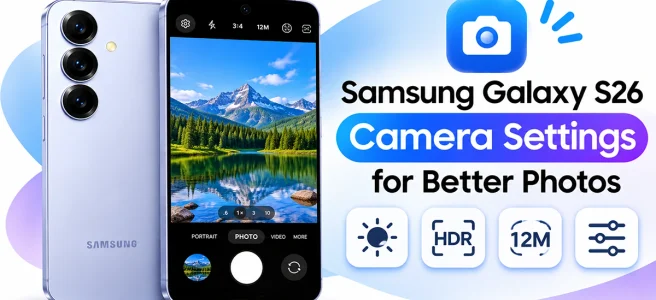
Best Galaxy S26 Camera Settings: Get Better Photos and Videos

Best Galaxy S26 Camera Settings

The best Galaxy S26 camera settings depend on what you are photographing, but a few adjustments can noticeably improve your results. For everyday photography, enable Composition guide, set Photo enhancer to Prioritize quality, use the appropriate camera lens, and adjust exposure before taking a picture. For video, enable stabilization and choose a resolution and frame rate that match your needs.

Samsung’s Galaxy S26 camera includes useful tools such as Shot suggestions, Scene optimizer, Nightography, Super Steady, and Pro mode. Knowing when to use each feature helps you capture sharper photos, more balanced colors, and smoother videos without constantly changing settings.

This guide explains the best Galaxy S26 camera settings for beginners and everyday users, including recommended configurations for the Galaxy S26, S26+, and S26 Ultra.

1. Best Galaxy S26 Camera Settings at a Glance

If you want to improve your camera experience immediately, start with these recommended settings.

Camera settingRecommended optionWhy it helps
Photo enhancerPrioritize qualityPrioritizes image quality
Composition guideOnHelps align and frame shots
Shot suggestionsOnProvides framing guidance
Scene optimizerOn, if preferredAutomatically adjusts image appearance
Tracking auto focusOnHelps keep moving subjects in focus
Video stabilizationOnReduces unwanted camera shake
Auto FPSAutoHelps brighten low-light videos
Location tagsOptionalAdds location information to photos
Motion PhotoOn when usefulCaptures movement around a photo

Menu names and available options can vary depending on your Galaxy S26 model, software version, and camera mode.

2. Enable Composition Guide for Better Photos

One of the most useful Galaxy S26 camera settings is Composition guide. It displays grid lines and a level indicator to help you position subjects and keep your photos straight.

To enable it:

  1. Open the Camera app.
  2. Tap the Quick controls icon.
  3. Tap the Settings icon.
  4. Find Composition guide under the General section.
  5. Turn it on.

Use the grid to apply the rule of thirds. Instead of placing every subject directly in the center, try positioning people, buildings, or other important objects along the grid lines.

The level indicator is also useful when photographing architecture, landscapes, and horizons. It helps prevent tilted photos.

Best for: Landscapes, travel photography, architecture, food photography, and everyday pictures.

3. Set Photo Enhancer to Prioritize Quality

The Photo enhancer setting controls how the camera optimizes image quality. If you prefer detailed photos over faster processing, choose Prioritize quality.

To change this setting:

  1. Open the Camera app.
  2. Tap Quick controls.
  3. Open Camera settings.
  4. Find Photo enhancer.
  5. Select Prioritize quality.

This option is particularly useful when taking photos you plan to crop, edit, or share at a higher quality.

One important detail: Samsung documents that the Galaxy S26 series can automatically save some photos at 12MP instead of 24MP depending on conditions. Selecting Prioritize quality is necessary for 24MP output, but it does not guarantee that every photo will be saved at 24MP. Zoom level, Night mode, flash, close-up photography, and other conditions can affect the final resolution.

Best for: Travel photos, detailed scenes, portraits, and images you intend to edit later.

4. Turn On Shot Suggestions

Shot suggestions can help beginners improve their photography composition. The feature analyzes the camera view and provides guidance to help you frame a subject.

To enable it:

  1. Open the Camera app.
  2. Tap Quick controls.
  3. Tap Settings.
  4. Select Shot suggestions.
  5. Turn the feature on.

When taking a picture, follow the on-screen guidance when it improves your composition. You do not have to follow every suggestion: use your own judgment to decide what looks best.

This feature is particularly helpful when photographing unfamiliar subjects or trying different angles.

Best for: Beginners, travel photography, group photos, and casual everyday shots.

5. Use Scene Optimizer for Automatic Adjustments

Scene optimizer helps the camera recognize what you are photographing and adjust image settings accordingly. It can modify elements such as exposure, contrast, and white balance to suit the detected scene.

To enable it:

  1. Open the Camera app.
  2. Tap Quick controls.
  3. Open Settings.
  4. Find Photo enhancer or its scene optimization option.
  5. Turn on Scene optimizer, if available.

Scene optimizer is convenient when you want the camera to handle adjustments automatically. However, automatic processing is not always the best choice for every creative situation.

For example, you may prefer more natural colors when photographing sunsets or food. Compare the results with the feature enabled and disabled to find your preferred look.

Best for: Point-and-shoot photography, food, flowers, landscapes, and everyday subjects.

6. Choose the Right Camera Lens and Zoom Level

Your Galaxy S26 camera can capture different perspectives using its available camera lenses and zoom options. Choosing the correct zoom level is often more important than increasing magnification.

Use these general recommendations:

Zoom optionRecommended use
0.6x or available ultra-wideLandscapes, buildings, and group photos
1xEveryday photos and natural perspective
2xPortrait-style framing and closer compositions
Optical telephoto optionsDistant subjects, where available
High digital zoomDistant details when necessary

The available zoom options depend on the Galaxy S26 model. The S26 Ultra has a different camera system from the standard S26 and S26+.

For the best results, use the camera’s dedicated zoom options rather than relying heavily on digital zoom. Digital magnification can reduce detail, especially in low-light conditions.

Also, move closer to your subject when possible. A good shooting distance often produces a better picture than extreme zoom.

7. Use Night Mode for Low-Light Photography

Night Mode helps capture brighter, clearer photos in dark environments. It is useful for city lights, evening landscapes, indoor scenes, and nighttime travel photography.

To use it:

  1. Open the Camera app.
  2. Select Photo mode.
  3. Look for the Night mode option or Moon icon when available.
  4. Keep your phone steady.
  5. Tap the shutter button and wait for the capture to finish.

For better night photos, avoid moving the phone while the camera processes the image. If possible, hold it with both hands or rest it against a stable surface.

Avoid using excessive zoom at night because it can make images look softer or noisier.

Best for: Night streets, buildings, evening landscapes, and low-light scenes.

8. Enable Tracking Auto Focus for Moving Subjects

Tracking auto focus helps the camera maintain focus on a moving subject. It is useful when photographing children, pets, sports, or people walking.

To enable it:

  1. Open the Camera app.
  2. Tap Quick controls.
  3. Open Camera settings.
  4. Find Tracking auto focus.
  5. Turn it on.

After enabling the feature, tap your subject in the viewfinder when appropriate. The camera can then help maintain focus as the subject moves.

Remember that focus tracking cannot completely eliminate motion blur. For fast-moving subjects, use good lighting and capture several photos to increase your chances of getting a sharp result.

9. Adjust Video Settings for Smoother Recording

The Galaxy S26 camera offers several video options. The best configuration depends on whether you are recording casual clips, social media videos, or high-quality footage for editing.

Here are practical recommendations:

Video settingRecommended use
4K at 30fpsEveryday videos with good detail
4K at 60fpsSmooth motion and action
1080p at 30fpsSmaller files and casual recording
Video stabilizationOn for handheld recording
Auto FPSAuto for changing or low-light conditions
High bitrateWhen available and higher file sizes are acceptable

To access video options:

  1. Open the Camera app.
  2. Select Video mode.
  3. Tap Quick controls.
  4. Choose your preferred resolution and frame rate.
  5. Open Camera settings for additional video options.

Higher resolutions and frame rates can use more storage and battery. If you mainly record short clips for messaging or social media, 1080p may be sufficient.

For important footage, consider recording in 4K when storage space allows.

10. Turn On Video Stabilization

Video stabilization helps reduce unwanted movement when recording handheld footage.

To enable it:

  1. Open the Camera app.
  2. Select Video mode.
  3. Open Quick controls.
  4. Find Video stabilization or the available Super Steady option.
  5. Enable the feature you need.

For walking videos or moving shots, Super Steady can provide additional stabilization. Some advanced stabilization features have limitations depending on the camera, recording mode, and device model.

Keep in mind that stabilization may crop the image or change the available recording options. Test it before recording an important video.

11. Customize Shooting Methods

You do not always need to tap the on-screen shutter button to take a picture. The Galaxy S26 supports alternative shooting methods that can make photography more convenient.

To configure them:

  1. Open the Camera app.
  2. Tap Quick controls.
  3. Open Settings.
  4. Select Shooting methods.
  5. Choose the options you want.

Useful options include:

  • Volume buttons: Use the physical buttons to take pictures or control zoom.
  • Voice commands: Capture photos or videos using supported voice commands.
  • Floating Shutter button: Place an additional shutter button where it is easier to reach.
  • Show palm: Take a selfie by showing your palm to the front camera.

These settings are particularly useful for selfies, group photos, and one-handed photography.

12. Explore Pro Mode for Manual Camera Control

If you want more control over your pictures, try Pro mode. It allows you to adjust settings such as ISO, exposure, white balance, and color tone.

To access it:

  1. Open the Camera app.
  2. Swipe to More.
  3. Select Pro.
  4. Adjust the available manual settings.
  5. Take a test photo and review the result.

Start with small adjustments rather than changing every setting at once.

For example, lower ISO can help reduce image noise in bright environments, while adjusting white balance can make colors look warmer or cooler. Shutter speed and exposure settings also affect how movement and brightness appear.

Pro mode is best for users who want to experiment with photography rather than rely entirely on automatic processing.

13. Use Photo Assist to Improve Your Pictures

After taking a photo, you can use Galaxy AI’s Photo Assist to make creative edits. Depending on the available features and your region, you can describe changes using text prompts, adjust images, or explore different visual styles.

To get started:

  1. Open Gallery.
  2. Select the photo you want to edit.
  3. Tap Galaxy AI.
  4. Choose Create or another available editing option.
  5. Enter a prompt or select an editing style.
  6. Generate and review the result.

Photo Assist is useful for removing distractions, changing backgrounds, and experimenting with creative edits. Always compare the edited image with the original before sharing it.

For a complete walkthrough of Samsung’s AI tools, read our Galaxy AI Tutorial.

14. Best Camera Settings for Different Situations

You do not need to use the same camera settings for every photograph. Use this quick reference when choosing your configuration.

Photography situationRecommended settings
Everyday photographyPhoto mode, 1x, Composition guide
LandscapesUltra-wide when appropriate, Composition guide
PortraitsPortrait mode or 2x framing where available
Night photographyNight mode, steady hands, avoid excessive zoom
Moving subjectsTracking auto focus, good lighting
Food photographyScene optimizer if you like its color adjustments
Group selfiesWide selfie option, Show palm
Walking videosVideo stabilization or Super Steady
Creative photographyPro mode and manual adjustments

Frequently Asked Questions

What are the best camera settings for the Galaxy S26?

For everyday photography, enable Composition guide and Shot suggestions, set Photo enhancer to Prioritize quality, and use the appropriate camera lens. Enable video stabilization when recording handheld footage.

How do I improve photo quality on my Galaxy S26?

Open Camera settings and select Prioritize quality under Photo enhancer. Keep the camera lens clean, use suitable lighting, avoid excessive digital zoom, and hold the phone steady when taking pictures.

Should I use 12MP or 24MP on the Galaxy S26?

Use the available 24MP option when you want more image detail and plan to crop or edit your photos. The camera may automatically save certain shots at 12MP depending on the shooting conditions and selected settings.

How do I take better night photos with the Galaxy S26?

Use Night mode when available, keep the phone steady, and avoid excessive zoom. Good framing and a stable shooting position can make a noticeable difference.

Does the Galaxy S26 have a Pro camera mode?

Yes. Pro mode provides manual controls such as ISO, exposure value, white balance, and color tone. Availability and controls may differ by model and software version.

Final Thoughts

The best Galaxy S26 camera settings are the ones that match your photography habits. Start with Composition guide, Shot suggestions, and Prioritize quality for everyday pictures. Use Night mode in darker environments, Tracking auto focus for moving subjects, and video stabilization for handheld recordings.

You do not need to change every setting to take better photos. Experiment with a few options, compare the results, and keep the settings that consistently produce the images you like.

For more ways to get the most out of your phone, explore our complete Samsung S26 Beginners Guide and discover additional Samsung Galaxy S26 tips and tricks.

Galaxy AI Tutorial: How to Use Samsung Galaxy S26 AI Features

Galaxy AI tutorial

Samsung Galaxy S26 brings artificial intelligence closer to everyday smartphone activities with Galaxy AI, a collection of intelligent features designed to improve productivity, communication, photography, and content creation.

Whether you want to edit photos using text prompts, translate conversations, summarize notes, or find information more quickly, Galaxy AI offers several tools that can make everyday tasks easier.

But how do you use Galaxy AI on Samsung Galaxy S26?

This Galaxy AI Tutorial explains the most useful features, where to find them, and how to use them step by step. You’ll learn how to use Photo Assist, Creative Studio, Circle to Search, Writing Assist, Now Brief, and other AI-powered tools.

If you’re new to Samsung smartphones, start with our Samsung S26 Beginners Guide: Everything You Need to Know to learn the essential settings and features before exploring Galaxy AI.

Galaxy AI Tutorial: What Is Galaxy AI on Samsung Galaxy S26?

Galaxy AI is Samsung’s collection of artificial intelligence features integrated into compatible Galaxy devices and applications.

On the Galaxy S26 series, Galaxy AI helps users perform tasks such as editing images, translating conversations, summarizing information, improving written content, and receiving contextual suggestions.

Some features operate directly on your device, while others may use cloud-based processing and require an internet connection.

You can explore available AI tools by opening Settings > Galaxy AI. Sign in to your Samsung account when prompted.

1. Use Photo Assist to Edit Photos With AI

Photo Assist is one of the most useful Galaxy AI features for photography enthusiasts.

It allows you to modify supported images using AI-powered editing tools. You can describe changes using text prompts and generate edited versions of your photographs.

How to use Photo Assist:

  1. Open the Gallery application.
  2. Select the photo you want to edit.
  3. Tap the Galaxy AI icon.
  4. Select Create or the available Photo Assist editing option.
  5. Enter a description of the changes you want.
  6. Tap Generate.
  7. Review the generated image and save your preferred result.

For example, you can describe an object you want to add or request changes to the background.

Photo Assist is useful for creating more interesting images without requiring advanced photo-editing skills.

2. Create Images and Stickers With Creative Studio

Creative Studio helps you turn ideas, sketches, and existing photographs into personalized visual content.

You can use it to generate artwork, create stickers, and design wallpapers.

How to use Creative Studio:

  1. Open the Apps screen.
  2. Find Creative Studio or access it through the Edge panel.
  3. Choose the type of creation you want.
  4. Select a photo, sketch, or text description when required.
  5. Choose an available visual style.
  6. Tap Generate.
  7. Review and save your creation.

Creative Studio is particularly useful for making personalized wallpapers, stickers, and creative images to share with friends.

3. Use Circle to Search to Find Information

Circle to Search lets you search for information about objects, images, and text directly from your screen.

You don’t need to switch applications or manually type a search query.

How to use Circle to Search:

  1. Open the screen containing the object or information you want to search for.
  2. Touch and hold the Home button or navigation bar, depending on your navigation settings.
  3. Circle, highlight, or tap the relevant object.
  4. Wait for the search results.
  5. Explore the information provided.

For example, you can identify a product in a photograph, search for clothing, or find information about an unfamiliar object.

4. Use Writing Assist to Improve Your Messages

Writing Assist helps improve written content by offering suggestions for grammar, spelling, tone, and translation in supported applications.

It can be particularly helpful when writing professional messages, emails, and everyday conversations.

How to use Writing Assist:

  1. Open a compatible messaging or writing application.
  2. Start typing your message.
  3. Open the Samsung Keyboard AI writing tools.
  4. Select Writing Assist or the relevant writing option.
  5. Choose an available function, such as spelling correction or tone adjustment.
  6. Review the suggestions.
  7. Apply the changes you prefer.

Always review AI-generated text before sending it, especially when communicating important information.

5. Use Now Brief for Personalized Information

Now Brief provides personalized summaries and useful information throughout the day.

Depending on your settings and available data, it can help you review reminders, daily information, and relevant suggestions.

How to explore Now Brief:

  1. Open Settings.
  2. Select Galaxy AI.
  3. Find Now Brief.
  4. Review the available configuration options.
  5. Enable the relevant permissions and preferences.
  6. Access Now Brief through its available interface or widget.

Now Brief can help organize daily information without requiring you to open multiple applications.

6. Try Now Nudge for Contextual Suggestions

Now Nudge is designed to recognize relevant information on your screen and suggest useful actions.

For example, when someone mentions an event in a supported conversation, it may suggest adding that event to your calendar.

How to enable Now Nudge:

  1. Open Settings.
  2. Select Galaxy AI.
  3. Tap Now Nudge.
  4. Review the required permissions.
  5. Enable the feature if available.
  6. Explore its suggested actions in supported applications.

7. Use Interpreter for Real-Time Translation

Interpreter helps translate conversations between supported languages.

It is useful when traveling, communicating with international visitors, or having conversations with people who speak different languages.

How to use Interpreter:

  1. Open the Interpreter application or find it through Galaxy AI.
  2. Select the two languages involved.
  3. Choose the conversation layout.
  4. Tap the microphone controls as needed.
  5. Speak naturally and allow the phone to translate the conversation.

Check the available language downloads and supported languages before using Interpreter.

8. Summarize Notes With Note Assist

Note Assist can help organize information in Samsung Notes.

Instead of manually reviewing lengthy notes, you can use AI to summarize, format, and organize supported content.

How to use Note Assist:

  1. Open Samsung Notes.
  2. Select an existing note or create a new one.
  3. Find the Note Assist option.
  4. Choose an available function, such as Summarize or Auto format.
  5. Review the generated result.
  6. Save the updated note if you are satisfied.

This feature is particularly useful for meeting notes, study materials, and personal reminders.

9. Convert Recordings Into Text With Transcript Assist

Transcript Assist can convert supported voice recordings into text and provide summaries.

It is helpful when reviewing meetings, interviews, lectures, or personal recordings.

How to use Transcript Assist:

  1. Open the Voice Recorder application.
  2. Select a compatible recording.
  3. Find the Transcript Assist option.
  4. Choose transcription or summarization when available.
  5. Wait for processing to finish.
  6. Review the transcript and save the result.

Accuracy can vary depending on recording quality, background noise, and language support.

10. Remove Unwanted Sounds With Audio Eraser

Audio Eraser helps reduce distracting background sounds in supported video recordings.

For example, it can help reduce wind, environmental noise, and other unwanted audio elements.

To try it:

  1. Open Gallery.
  2. Select a compatible video.
  3. Open the video editing tools.
  4. Find Audio Eraser.
  5. Adjust the available sound controls.
  6. Preview the result.
  7. Save your edited video.

This feature can help make videos more enjoyable to watch, especially when background noise competes with speech.

Samsung Galaxy S26 Galaxy AI Features: Quick Reference

Galaxy AI featureMain purposeWhere to Access
Photo AssistAI photo editingGallery
Creative StudioGenerate images and stickersApps screen or Edge panel
Circle to SearchSearch objects and informationNavigation bar
Writing AssistImprove written contentSamsung Keyboard
Now BriefPersonalized summariesGalaxy AI / supported interface
Now NudgeContextual suggestionsSettings > Galaxy AI
InterpreterTranslate conversationsInterpreter app
Note AssistSummarize and organize notesSamsung Notes
Transcript AssistConvert recordings into textVoice Recorder
Audio EraserReduce unwanted video soundsGallery / Video editor

Frequently Asked Questions About Galaxy AI

Does Samsung Galaxy S26 support Galaxy AI?

Yes. Samsung Galaxy S26 supports Galaxy AI features for photography, productivity, communication, search, and other everyday activities.

Is Galaxy AI free on Samsung Galaxy S26?

Some Galaxy AI features are available without an additional subscription, but certain services, third-party AI tools, or future features may have different requirements. Check Samsung’s current service terms for details.

Does Galaxy AI require an internet connection?

Some AI functions can operate on-device, while others require an internet connection and cloud processing. Requirements vary by feature.

How do I enable Galaxy AI on Samsung Galaxy S26?

Open Settings > Galaxy AI, sign in to your Samsung account if prompted, and configure the available features and permissions.

Final Thoughts

Galaxy AI makes Samsung Galaxy S26 more than a conventional smartphone by introducing intelligent tools for photography, communication, productivity, and everyday tasks.

Start with Photo Assist, Circle to Search, and Writing Assist to understand how AI can simplify common activities. Then explore Creative Studio, Interpreter, Note Assist, and other tools as needed.

Remember that feature availability, language support, and processing requirements can vary by region and software version.

With a little practice, you can use Galaxy AI to save time, create better content, and get more from your Samsung Galaxy S26.

How to Set Up Samsung Galaxy S26: Complete Step-by-Step Guide

How to set up Samsung Galaxy S26

Setting up your new smartphone correctly is the first step toward getting the best experience from it. The Samsung Galaxy S26 offers a range of useful features, including Galaxy AI, advanced camera tools, customizable One UI settings, and enhanced security options.

However, if you’re switching from an older Samsung phone, another Android device, or an iPhone, you might need help configuring everything correctly.

This guide explains how to set up Samsung Galaxy S26 step by step, from turning on your device and transferring old data to configuring accounts, security, display preferences, and essential settings.

Whether you’re a first-time Samsung user or upgrading from an older Galaxy model, follow these instructions to get your new smartphone ready for everyday use.

If you’re new to Samsung smartphones, read our Samsung S26 Beginners Guide: Everything You Need to Know for a broader introduction to the phone’s features and settings.

How to Set Up Samsung Galaxy S26 for the First Time

Before starting, prepare your new Galaxy S26, a reliable Wi-Fi connection, your Google and Samsung account details, and your previous smartphone if you plan to transfer data.

It’s also a good idea to charge both phones before beginning the setup process.

1. Turn On Your Samsung Galaxy S26

Start by powering on your new smartphone.

Follow these steps:

  1. Press and hold the Side button until the Samsung logo appears.
  2. Wait for the welcome screen.
  3. Select your preferred language.
  4. Choose your region if prompted.
  5. Tap Start to continue.
  6. Review the displayed terms and privacy information.

Your Galaxy S26 will now guide you through the initial setup process.

The exact screens may differ depending on your region, carrier, and software version.

2. Connect to a Wi-Fi Network

A stable internet connection makes the setup process easier, particularly when downloading updates, signing into accounts, and transferring information.

To connect:

  1. Select your preferred Wi-Fi network.
  2. Enter the network password.
  3. Tap Connect.
  4. Wait until your phone confirms the connection.

If you’re using mobile data, check that your SIM or eSIM is activated and that your mobile network supports the services you need.

For users in Indonesia, confirm your carrier’s SIM or eSIM activation requirements before continuing.

3. Transfer Data Using Samsung Smart Switch

If you’re upgrading from another smartphone, Samsung Smart Switch helps transfer supported content to your new Galaxy S26.

Depending on the source device and transfer method, you can move contacts, photos, videos, messages, calendars, notes, and other information.

How to transfer data using Smart Switch:

  1. Turn on your Galaxy S26.
  2. Follow the initial setup instructions.
  3. Choose the option to set up using an old device when prompted.
  4. Select Galaxy or Android device, or iPhone or iPad.
  5. Follow the instructions to connect both devices.
  6. Choose a wireless or cable transfer method.
  7. Select the content you want to transfer.
  8. Tap Next or Transfer to begin.

You can also transfer information after completing the initial setup by opening Smart Switch or navigating to Settings > Accounts and backup.

Important: Keep both devices charged and nearby during wireless transfers. Some applications, account credentials, protected content, and settings may require additional configuration after the transfer.

If you’re switching from an iPhone, Smart Switch also supports compatible transfer options using a cable or iCloud.

4. Sign In to Your Google Account

A Google account gives you access to essential Android services, including Google Play Store, Gmail, Google Photos, and Google Drive.

To sign in:

  1. Select Sign in when prompted.
  2. Enter your Google account email address.
  3. Enter your password.
  4. Complete any required identity verification.
  5. Review the Google services and backup options.
  6. Confirm your preferences.

If you don’t have a Google account, you can create one during setup.

Make sure you use an account you can access because it will be important for application downloads, backups, and account recovery.

5. Sign In to Your Samsung Account

Your Samsung account provides access to Samsung services and features, including Galaxy Store, Samsung Cloud features where supported, Samsung Find, and other connected services.

To configure it:

  1. Select Sign in to Samsung account.
  2. Enter your registered email address or phone number.
  3. Enter your password.
  4. Complete the verification process if required.
  5. Review the available services and permissions.

If you don’t already have an account, follow the instructions to create one.

You can also sign in later through Settings.

6. Set Up Fingerprint and Face Recognition

Protecting your smartphone should be one of your first priorities.

The Galaxy S26 supports biometric security options that make unlocking your phone more convenient.

To configure fingerprint recognition:

  1. Open Settings.
  2. Select Security and privacy.
  3. Find Biometrics.
  4. Choose Fingerprints.
  5. Follow the on-screen instructions to register your fingerprint.
  6. Create a backup PIN, password, or pattern.

You can also configure face recognition through the Biometrics menu.

For stronger protection, use a secure PIN or password and avoid sharing your screen-lock credentials.

7. Configure Display and Home Screen Settings

Once your phone is secured, customize the interface to suit your preferences.

Open Settings > Display to explore the available options.

Recommended adjustments include:

  • Dark mode: Choose a darker interface appearance.
  • Brightness: Adjust the screen brightness to comfortable levels.
  • Motion smoothness: Select an available refresh-rate setting.
  • Screen timeout: Choose how long the screen stays active when unused.
  • Screen resolution: Review available options if supported by your model.

You can also personalize your Home screen.

Long-press an empty area of the Home screen to change wallpapers, add widgets, organize applications, and adjust the layout.

8. Update Samsung Galaxy S26 Software

Installing available software updates helps maintain device security and compatibility.

To check for updates:

  1. Open Settings.
  2. Select Software update.
  3. Tap Download and install.
  4. Wait while your phone checks for available updates.
  5. Follow the instructions if an update is available.

Use a reliable Wi-Fi connection and ensure your battery has sufficient charge before installing an update.

Some updates may require your phone to restart.

9. Configure Essential Privacy and Security Settings

Your smartphone stores personal information, including messages, photographs, account details, and application data.

Review the privacy settings before using your device regularly.

Open Settings > Security and privacy to explore available controls.

Recommended actions include:

  • Review application permissions.
  • Check which apps can access your location.
  • Enable appropriate device security features.
  • Configure Samsung Find or other supported device-finding services.
  • Review automatic backup settings.
  • Keep your screen lock enabled.

You can also explore Secure Folder to protect selected applications and files.

10. Install Essential Applications

After completing the initial setup, install the applications you regularly use.

Open Google Play Store or Galaxy Store to find compatible applications.

Consider installing:

  • Messaging and communication applications.
  • Banking and payment applications.
  • Productivity and document applications.
  • Navigation and travel applications.
  • Photography and video editing applications.
  • Password management applications.

For security, download applications from trusted sources and review their permissions before granting access.

Essential Samsung Galaxy S26 Settings to Check After Setup

After completing the initial configuration, review these settings to make your smartphone more convenient.

SettingWhere to Find ItRecommendation
FingerprintSettings > BiometricsRegister your fingerprint
Face recognitionSettings > BiometricsConfigure if preferred
Dark modeSettings > DisplayChoose your preferred appearance
Screen timeoutSettings > DisplaySet a suitable timeout
BatterySettings > BatteryReview power usage
Software updateSettings > Software updateCheck for updates
App permissionsSettings > Security and privacyReview application access
BackupSettings > Accounts and backupConfigure supported backups
Modes and RoutinesSettingsExplore useful automation
Galaxy AISettings > Galaxy AIReview available features

Frequently Asked Questions

How long does it take to set up Samsung Galaxy S26?

The initial configuration may take around 15–30 minutes, depending on your internet connection, account verification, and selected settings. Transferring a large amount of data can take considerably longer.

Do I need a Samsung account to use Galaxy S26?

You can use many basic Android features without immediately signing into a Samsung account. However, a Samsung account is needed for certain Samsung services and connected features.

How do I transfer data from iPhone to Samsung Galaxy S26?

Use Samsung Smart Switch to transfer supported information from your iPhone. Depending on your preference, you can use a compatible cable or an iCloud transfer option.

Should I update Samsung Galaxy S26 immediately?

It’s recommended to check for available software updates after completing the initial setup. Updates can provide security improvements, bug fixes, and additional features.

Can I set up Samsung Galaxy S26 without transferring old data?

Yes. Choose the option to set up your device as new or don’t copy data when prompted. You can transfer selected information later using Smart Switch.

Final Thoughts

Setting up your Samsung Galaxy S26 doesn’t have to be complicated. By following these steps, you can configure your accounts, transfer important information, secure your device, customize the interface, and prepare your smartphone for everyday use.

Start with the essential configuration, check for software updates, and review your privacy settings before exploring more advanced features.

Once your phone is ready, discover additional ways to improve your experience with our Samsung Galaxy S26 tips and tricks: 15 features every owner should know.

With the right setup, your Samsung Galaxy S26 will be ready for communication, photography, productivity, entertainment, and everyday tasks.

Samsung Galaxy S26 Tips and Tricks: 15 Features Every Owner Should Know

Samsung Galaxy S26 tips and tricks

The Samsung Galaxy S26 offers much more than a powerful processor and an impressive display. It includes useful customization options, advanced camera controls, Galaxy AI tools, privacy features, and shortcuts that can make everyday smartphone use easier.

However, many of these features are not immediately obvious to new users.

Whether you have recently purchased the Galaxy S26 or upgraded from an older Samsung phone, learning a few useful tricks can help you get more from your device. This guide covers 15 Samsung Galaxy S26 tips and tricks, including hidden settings, camera improvements, AI features, battery optimization, and productivity shortcuts.

If you are new to Samsung smartphones, start with our Samsung S26 Beginners Guide for a complete introduction to setup, navigation, and essential features.

Samsung Galaxy S26 Tips and Tricks to Improve Your Experience

Here are 15 practical features worth exploring on your Galaxy S26.

1. Use Now Nudge for Smarter Suggestions

Now Nudge is one of the useful Galaxy AI features available on the Galaxy S26 series. It recognizes relevant information on your screen and suggests actions based on the context.

For example, it can help you add an event mentioned in a conversation to your calendar or suggest sharing relevant photos.

To enable it:

  1. Open Settings.
  2. Select Galaxy AI.
  3. Find Now Nudge.
  4. Turn on the feature and configure its available permissions.

The feature may require a Samsung account, an internet connection, and supported applications.

2. Customize Your Home Screen

You don’t have to keep the default Home screen layout.

Long-press an empty area of the Home screen to access customization options.

You can:

  • Change your wallpaper and themes.
  • Add useful widgets.
  • Rearrange application icons.
  • Create folders for frequently used apps.
  • Adjust the Home screen grid.
  • Customize available Home screen settings.

Try placing your calendar, weather, and battery widgets on the first screen for faster access to important information.

3. Enable Dark Mode

Dark mode changes supported interface elements to a darker appearance, which can be more comfortable in low-light environments.

To activate it:

  1. Open Settings.
  2. Tap Display.
  3. Select Dark mode.
  4. Choose your preferred activation schedule if available.

You can also add Dark mode to Quick Settings for convenient access.

4. Improve Photos With Galaxy AI Photo Assist

Photo Assist lets you use AI-powered editing tools to modify supported images.

To try it:

  1. Open the Gallery application.
  2. Select a photo.
  3. Tap the Galaxy AI editing option.
  4. Explore the available editing tools.
  5. Describe the changes you want when prompt-based editing is supported.
  6. Review and save the result.

You can use compatible tools to adjust images, remove unwanted elements, or create different visual effects.

Always review AI-edited images before sharing them because generated results may not perfectly match the original scene.

5. Use Circle to Search

Circle to Search makes it easier to look up information without manually typing a search query.

To use it:

  1. Open the screen containing an object, product, or text you want to identify.
  2. Touch and hold the navigation handle or Home button, depending on your navigation configuration.
  3. Circle, highlight, or tap the item.
  4. Review the search results.

It is particularly useful when identifying products, translating visible text, or learning more about something in a photo.

6. Customize Camera Shooting Methods

The Galaxy S26 camera offers several ways to capture photos.

Open Camera, tap Quick controls, and access Camera settings. Look for Shooting methods.

Depending on the available settings, you can configure:

  • Volume buttons to capture photos or control zoom.
  • Voice commands for hands-free photography.
  • Floating Shutter button for easier one-handed shooting.
  • Show palm for convenient selfies.

These options are especially useful when taking group photos or using a tripod.

7. Activate Shot Suggestions

Shot Suggestions can help you improve photo composition by displaying guides in the camera viewfinder.

To explore this feature:

  1. Open Camera.
  2. Tap Quick controls.
  3. Open Camera settings.
  4. Find Shot suggestions.
  5. Enable the feature if available.

Use the on-screen guidance to position your subject and create more balanced photographs.

8. Use the Side Button to Open the Camera Quickly

You can configure the Side button to launch the Camera application with a double press.

Follow these steps:

  1. Open Settings.
  2. Select Advanced features.
  3. Tap Side button.
  4. Find Double press.
  5. Select Camera.

Once enabled, double-pressing the Side button lets you open the camera without searching through your applications.

9. Use Modes and Routines

Modes and Routines help automate selected phone settings based on your activities or conditions.

For example, you can create a routine that:

  • Enables Do Not Disturb during working hours.
  • Activates battery-saving settings when battery levels are low.
  • Changes sound settings at bedtime.
  • Enables Wi-Fi when you arrive home.

Open Settings and search for Modes and Routines. Explore the available templates or create your own automation.

10. Optimize Battery Usage

You can improve everyday battery efficiency by identifying applications that consume excessive power.

Open Settings > Battery to review battery information and available management options.

Consider these adjustments:

  • Reduce screen brightness.
  • Use a shorter screen timeout.
  • Limit unnecessary background activity.
  • Enable Power saving mode when needed.
  • Review battery-intensive applications.

You can also explore Battery protection options to manage charging behavior.

11. Customize Quick Settings

Quick Settings provides shortcuts to frequently used phone controls.

Swipe down from the top of the screen to open the Quick Settings panel.

Depending on your configuration, you can access Wi-Fi, Bluetooth, Airplane mode, screen recording, brightness, and other controls.

Rearrange available buttons so your most frequently used features are easier to reach.

12. Use Secure Folder for Private Files

Secure Folder provides a protected space for supported applications and personal information.

To configure it:

  1. Open Settings.
  2. Select Security and privacy.
  3. Find More security settings or Secure Folder.
  4. Follow the setup instructions.
  5. Choose an available lock method.

You can use Secure Folder to keep selected files, photos, and applications separate from your regular phone environment.

13. Enable Edge Panels for Faster Access

Edge panels provide quick access to selected applications, contacts, and useful tools.

Open Settings and search for Edge panels. Enable the feature if available, then customize the panels you want to use.

Swipe inward from the Edge panel handle to access your selected shortcuts.

This can reduce the time spent navigating between applications.

14. Use Screen Recording

Screen recording is useful when creating tutorials, saving demonstrations, or explaining how to use an application.

To start recording:

  1. Swipe down to open Quick Settings.
  2. Find Screen recorder.
  3. Select your preferred sound recording option.
  4. Tap Start recording.
  5. Stop the recording when finished.

Your recording will generally be saved in the Gallery or another designated media location.

Remember to avoid recording private information or other people’s content without permission.

15. Keep Your Samsung Galaxy S26 Updated

Software updates can introduce new features, improve performance, and address security issues.

To check for updates:

  1. Open Settings.
  2. Select Software update.
  3. Tap Download and install.
  4. Follow the instructions if an update is available.

Use a reliable Wi-Fi connection and ensure your battery has sufficient charge before installing major updates.

Samsung Galaxy S26 Tips and Tricks: Quick Reference Table

FeatureWhere to Find ItMain Benefit
Now NudgeSettings > Galaxy AIContextual suggestions
Home screenLong-press Home screenPersonalization
Dark modeSettings > DisplayDarker interface
Photo AssistGalleryAI photo editing
Circle to SearchNavigation barVisual search
Shooting methodsCamera settingsEasier photography
Shot suggestionsCamera settingsBetter composition
Camera shortcutSettings > Advanced featuresFaster camera access
Modes and RoutinesSettingsAutomation
Battery optimizationSettings > BatteryPower management
Quick SettingsSwipe downFaster controls
Secure FolderSecurity and privacyPrivate storage
Edge panelsSettingsApp shortcuts
Screen recorderQuick SettingsCapture screen activity
Software updatesSettings > Software updateSecurity and improvements

Frequently Asked Questions

What are the best Samsung Galaxy S26 tips and tricks?

Some of the most useful features include Now Nudge, Circle to Search, Photo Assist, Modes and Routines, customizable Quick Settings, and battery management tools.

Does Samsung Galaxy S26 have hidden features?

Yes. Features such as Edge panels, Secure Folder, customizable camera shooting methods, and Modes and Routines may be overlooked by everyday users.

How do I improve Samsung Galaxy S26 battery life?

Reduce screen brightness, review battery usage, limit unnecessary background activity, and enable Power saving mode when needed.

How do I use Galaxy AI on Samsung Galaxy S26?

Open Settings > Galaxy AI to explore supported features. You can also access certain AI tools directly through applications such as Gallery.

Is Samsung Galaxy S26 suitable for beginners?

Yes. Its One UI interface offers customizable controls and accessible features. Beginners can start with basic settings and gradually explore advanced tools.

Final Thoughts

The Samsung Galaxy S26 includes many useful features that can improve photography, productivity, privacy, and everyday convenience.

Start by exploring Now Nudge, Circle to Search, camera shortcuts, and Modes and Routines. Then customize your Home screen, Quick Settings, and battery preferences to match your daily habits.

You don’t need to activate every feature immediately. Experiment with a few useful settings at a time and discover which ones make the biggest difference to your smartphone experience.

For more detailed instructions covering initial setup, data transfer, One UI navigation, and essential settings, read our complete Samsung S26 Beginners Guide.