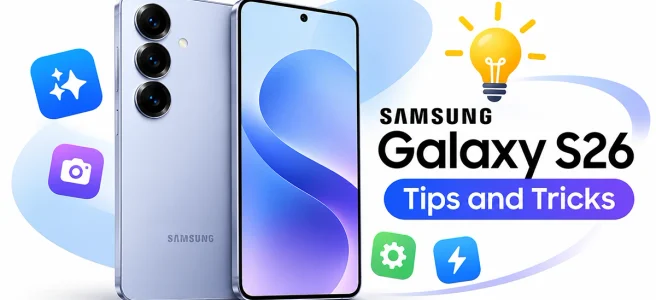
The Samsung Galaxy S26 offers much more than a powerful processor and an impressive display. It includes useful customization options, advanced camera controls, Galaxy AI tools, privacy features, and shortcuts that can make everyday smartphone use easier.

However, many of these features are not immediately obvious to new users.
Whether you have recently purchased the Galaxy S26 or upgraded from an older Samsung phone, learning a few useful tricks can help you get more from your device. This guide covers 15 Samsung Galaxy S26 tips and tricks, including hidden settings, camera improvements, AI features, battery optimization, and productivity shortcuts.
If you are new to Samsung smartphones, start with our Samsung S26 Beginners Guide for a complete introduction to setup, navigation, and essential features.
Table of Contents
Samsung Galaxy S26 Tips and Tricks to Improve Your Experience
Here are 15 practical features worth exploring on your Galaxy S26.
1. Use Now Nudge for Smarter Suggestions

Now Nudge is one of the useful Galaxy AI features available on the Galaxy S26 series. It recognizes relevant information on your screen and suggests actions based on the context.
For example, it can help you add an event mentioned in a conversation to your calendar or suggest sharing relevant photos.
To enable it:
- Open Settings.
- Select Galaxy AI.
- Find Now Nudge.
- Turn on the feature and configure its available permissions.
The feature may require a Samsung account, an internet connection, and supported applications.
2. Customize Your Home Screen
You don’t have to keep the default Home screen layout.
Long-press an empty area of the Home screen to access customization options.
You can:
- Change your wallpaper and themes.
- Add useful widgets.
- Rearrange application icons.
- Create folders for frequently used apps.
- Adjust the Home screen grid.
- Customize available Home screen settings.
Try placing your calendar, weather, and battery widgets on the first screen for faster access to important information.
3. Enable Dark Mode
Dark mode changes supported interface elements to a darker appearance, which can be more comfortable in low-light environments.
To activate it:
- Open Settings.
- Tap Display.
- Select Dark mode.
- Choose your preferred activation schedule if available.
You can also add Dark mode to Quick Settings for convenient access.
4. Improve Photos With Galaxy AI Photo Assist

Photo Assist lets you use AI-powered editing tools to modify supported images.
To try it:
- Open the Gallery application.
- Select a photo.
- Tap the Galaxy AI editing option.
- Explore the available editing tools.
- Describe the changes you want when prompt-based editing is supported.
- Review and save the result.
You can use compatible tools to adjust images, remove unwanted elements, or create different visual effects.
Always review AI-edited images before sharing them because generated results may not perfectly match the original scene.
5. Use Circle to Search
Circle to Search makes it easier to look up information without manually typing a search query.
To use it:
- Open the screen containing an object, product, or text you want to identify.
- Touch and hold the navigation handle or Home button, depending on your navigation configuration.
- Circle, highlight, or tap the item.
- Review the search results.
It is particularly useful when identifying products, translating visible text, or learning more about something in a photo.
6. Customize Camera Shooting Methods
The Galaxy S26 camera offers several ways to capture photos.
Open Camera, tap Quick controls, and access Camera settings. Look for Shooting methods.
Depending on the available settings, you can configure:
- Volume buttons to capture photos or control zoom.
- Voice commands for hands-free photography.
- Floating Shutter button for easier one-handed shooting.
- Show palm for convenient selfies.
These options are especially useful when taking group photos or using a tripod.
7. Activate Shot Suggestions
Shot Suggestions can help you improve photo composition by displaying guides in the camera viewfinder.
To explore this feature:
- Open Camera.
- Tap Quick controls.
- Open Camera settings.
- Find Shot suggestions.
- Enable the feature if available.
Use the on-screen guidance to position your subject and create more balanced photographs.
8. Use the Side Button to Open the Camera Quickly
You can configure the Side button to launch the Camera application with a double press.
Follow these steps:
- Open Settings.
- Select Advanced features.
- Tap Side button.
- Find Double press.
- Select Camera.
Once enabled, double-pressing the Side button lets you open the camera without searching through your applications.
9. Use Modes and Routines
Modes and Routines help automate selected phone settings based on your activities or conditions.
For example, you can create a routine that:
- Enables Do Not Disturb during working hours.
- Activates battery-saving settings when battery levels are low.
- Changes sound settings at bedtime.
- Enables Wi-Fi when you arrive home.
Open Settings and search for Modes and Routines. Explore the available templates or create your own automation.
10. Optimize Battery Usage
You can improve everyday battery efficiency by identifying applications that consume excessive power.
Open Settings > Battery to review battery information and available management options.
Consider these adjustments:
- Reduce screen brightness.
- Use a shorter screen timeout.
- Limit unnecessary background activity.
- Enable Power saving mode when needed.
- Review battery-intensive applications.
You can also explore Battery protection options to manage charging behavior.
11. Customize Quick Settings
Quick Settings provides shortcuts to frequently used phone controls.
Swipe down from the top of the screen to open the Quick Settings panel.
Depending on your configuration, you can access Wi-Fi, Bluetooth, Airplane mode, screen recording, brightness, and other controls.
Rearrange available buttons so your most frequently used features are easier to reach.
12. Use Secure Folder for Private Files
Secure Folder provides a protected space for supported applications and personal information.
To configure it:
- Open Settings.
- Select Security and privacy.
- Find More security settings or Secure Folder.
- Follow the setup instructions.
- Choose an available lock method.
You can use Secure Folder to keep selected files, photos, and applications separate from your regular phone environment.
13. Enable Edge Panels for Faster Access
Edge panels provide quick access to selected applications, contacts, and useful tools.
Open Settings and search for Edge panels. Enable the feature if available, then customize the panels you want to use.
Swipe inward from the Edge panel handle to access your selected shortcuts.
This can reduce the time spent navigating between applications.
14. Use Screen Recording
Screen recording is useful when creating tutorials, saving demonstrations, or explaining how to use an application.
To start recording:
- Swipe down to open Quick Settings.
- Find Screen recorder.
- Select your preferred sound recording option.
- Tap Start recording.
- Stop the recording when finished.
Your recording will generally be saved in the Gallery or another designated media location.
Remember to avoid recording private information or other people’s content without permission.
15. Keep Your Samsung Galaxy S26 Updated
Software updates can introduce new features, improve performance, and address security issues.
To check for updates:
- Open Settings.
- Select Software update.
- Tap Download and install.
- Follow the instructions if an update is available.
Use a reliable Wi-Fi connection and ensure your battery has sufficient charge before installing major updates.
Samsung Galaxy S26 Tips and Tricks: Quick Reference Table
| Feature | Where to Find It | Main Benefit |
|---|---|---|
| Now Nudge | Settings > Galaxy AI | Contextual suggestions |
| Home screen | Long-press Home screen | Personalization |
| Dark mode | Settings > Display | Darker interface |
| Photo Assist | Gallery | AI photo editing |
| Circle to Search | Navigation bar | Visual search |
| Shooting methods | Camera settings | Easier photography |
| Shot suggestions | Camera settings | Better composition |
| Camera shortcut | Settings > Advanced features | Faster camera access |
| Modes and Routines | Settings | Automation |
| Battery optimization | Settings > Battery | Power management |
| Quick Settings | Swipe down | Faster controls |
| Secure Folder | Security and privacy | Private storage |
| Edge panels | Settings | App shortcuts |
| Screen recorder | Quick Settings | Capture screen activity |
| Software updates | Settings > Software update | Security and improvements |
Frequently Asked Questions
What are the best Samsung Galaxy S26 tips and tricks?
Some of the most useful features include Now Nudge, Circle to Search, Photo Assist, Modes and Routines, customizable Quick Settings, and battery management tools.
Does Samsung Galaxy S26 have hidden features?
Yes. Features such as Edge panels, Secure Folder, customizable camera shooting methods, and Modes and Routines may be overlooked by everyday users.
How do I improve Samsung Galaxy S26 battery life?
Reduce screen brightness, review battery usage, limit unnecessary background activity, and enable Power saving mode when needed.
How do I use Galaxy AI on Samsung Galaxy S26?
Open Settings > Galaxy AI to explore supported features. You can also access certain AI tools directly through applications such as Gallery.
Is Samsung Galaxy S26 suitable for beginners?
Yes. Its One UI interface offers customizable controls and accessible features. Beginners can start with basic settings and gradually explore advanced tools.
Final Thoughts
The Samsung Galaxy S26 includes many useful features that can improve photography, productivity, privacy, and everyday convenience.
Start by exploring Now Nudge, Circle to Search, camera shortcuts, and Modes and Routines. Then customize your Home screen, Quick Settings, and battery preferences to match your daily habits.
You don’t need to activate every feature immediately. Experiment with a few useful settings at a time and discover which ones make the biggest difference to your smartphone experience.
For more detailed instructions covering initial setup, data transfer, One UI navigation, and essential settings, read our complete Samsung S26 Beginners Guide.

Hi, this is a comment.
To get started with moderating, editing, and deleting comments, please visit the Comments screen in the dashboard.
Commenter avatars come from Gravatar.